Assessments in Apple Schoolwork

Featured

Apple’s launched its initial learning platform for iPad — iTunes U — in 2012, an app and website that allowed educators to build courses, share resources and even collect in work from students. After the introduction of institutionally managed Apple IDs in 2016 with the arrival of Apple School Manager, things got a little hairy, and so in 2018 Apple unveiled Apple Schoolwork and then quietly retired iTunes U in 2021.

Schoolwork has evolved over time, and is shaping up to be quite a powerful and useful tool, but it is very ‘Apple’: it only works on iPad, it only works with institutionally-owned Managed Apple Accounts, and basically is a more automated way of setting up collaborative iWork documents with a class of children. I’ve never seen it really promoted heavily by Apple, perhaps because it’s basically impossible to demo with people outside of your institution and because it heavily assumes you’re in a 1:1 iPad setting.

There is one feature that has piqued my interest lately, and that is of assessments. This allows a teacher to share an assessment (in PDF form, possibly scanned in via the iPad camera) with students, who then complete using markup tools. The unique offering here is that the iPads can be put into assessment mode by Apple Schoolwork during an assessment, meaning that students can’t leave the app and go and use the calculator/search with Google etc. Once completed, the teacher can grade the assessment in various ways, which then produces question-level analysis for the class. Digital assessments seems like an unsolved problem at the moment, requiring bespoke software that can’t easily be used by teachers to create tests, so Apple Schoolwork feels like a bridge between the paper-based assessments of today and the digitised assessments of tomorrow.

What’s it like to use?

I recently trialled it with some Year 4 teachers for their Autumn term maths assessments. Here are my findings:

  • The first step was to digitally scan in the existing assessment paper. I was able to do this satisfactorily using the school’s photocopiers, so kept these files ready at hand.
  • Next I had to create the assessments in Schoolwork. All of the students already had and were signed into their iPads with Managed Apple Accounts, with all of the ‘roster’ information set up in Apple School Manager, so this was pretty straightforward.
  • When it came to the test, students just needed to tap ‘start’ in the app, which then asked the students to agree for the iPad to be put into assessment mode.
  • Students would then complete the assessment with markup tools, using either a finger or a stylus. To navigate around the document, students either had to tap the pen icon to turn off markup before they could swipe around, or had to use two fingers. This was a little trick for some children, resulting in lots of random lines across the document as they attempted to scroll down. A couple of students also had issues with getting markup to draw at all, until we realised they they had turned off ‘draw with touch’.
  • The app itself was generally stable, although it did occasionally crash. Students were then able to just restart the assessment, although some needed to do a hard restart to get it all working again.
  • When students had finished the assessment, they have to tap the ‘submit’ button to turn it in. One rather annoying gotcha with this is that this step is entirely irreversible: once an assignment has been completed (even if by accident), a whole new assignment would need to be created for the student.

Once all this is done, the teacher can then review the submissions within the Schoolwork app. There is a whole range of different ways to mark a paper, such as ‘completion’, ‘letter system’, ‘number system’, ‘points system’, ‘satisfactory scale’ or some kind of custom system. When just awarding points, a single tap on a question adds a tick, a double tap is a cross and a triple tap for a bonus point.

To unlock question-level analysis, the teacher then has to specify which parts of the test paper are which question (so that the marks given can be assigned to a particular question). It does attempt to this via the wonders of machine learning, but not with great success. The teacher then has to tweak exactly how the points are distributed across the paper.

So is it worth using?

On the plus side, it does save the time and money of photocopying. And, with the additional configuring at the end, it gives that question-level analysis that would previously take entering laboriously into a spreadsheet to access.

However, I feel there are just too many ways it can go wrong, when compared to paper assessments: app crashing, issues with assessment mode, fiddly scrolling vs drawing considerations, as well as the ability for a child to sabotage the whole thing by submitting their paper by accident.

I shall continue to follow the development of this app with interest.

LEGO Spike Essential

Back in the early 2010, Mr LEGO himself introduced us to the original LEGO WeDo kits as a way of teaching the robotics/control part of the then primary ICT curriculum. Through a USB hub, children could use block-based coding to interact with LEGO models incorporating a motor, a tilt sensor and motion sensor. We used these with our iMac suite and children and teachers loved them alike.

In 2016, LEGO released WeDo 2.0, with a battery-powered Bluetooth hub that could pair to Mac, PC, Chromebook and iPad. We were just beginning our 1:1 iPad journey, and in 2017 we ended up buying two class sets of these kits with the proceeds of the sale of the iMac suite that was no longer needed.

These kits have since served us well, offering an engaging building and coding experience for children, with corresponding curriculum resources in the WeDo app.

Reflecting on the many years of use, there were some pain points:

  • Sorting out kits. The kits do come with a labelled sorting tray, but it takes a high level of obsessional conscientiousness to keep everything in order.
  • Missing pieces. Kids lose LEGO pieces, either through carelessness, leaving them in random drawers or even theft, so a visit to LEGO spares was regularly required.
  • Length of builds. The models that LEGO provides instructions for are really cool (like a Mars rover, a simulation bee or a race car) but they all take quite some time to build, particularly if children aren’t used to playing with LEGO. Often, this meant having a ‘build’ lesson followed by a separate ‘code’ lesson, with plenty of time in between for pieces to get lost.
  • Battery drain. As the kits connected wirelessly, they had a tendency to chew throw AA alkaline batteries, adding an ongoing consumable cost as well as the hassle of taking apart the models to put fresh batteries in mid-code.

After an epic 8-year run, I felt it was time to upgrade to the newer Spike Prime Essential kits. With the happy delivery of two classroom sets, here are my thoughts so far…

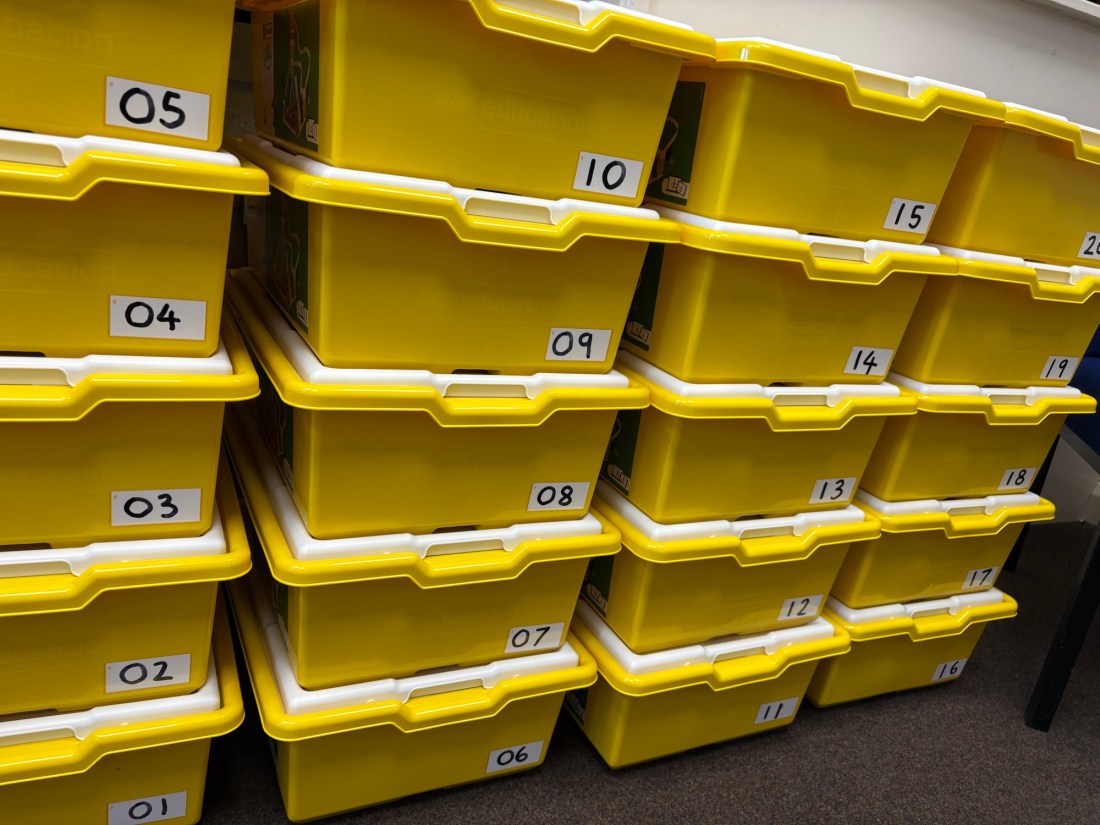
Happy delivery!

Thoughts on LEGO Spike Essential

The app

There is a LEGO Spike iPad app, as well as Chromebook-friendly web app, complete with build instructions, curriculum resources and coding environment. The coding comes in two flavours: younger-learner-friendly code blocks that are placed in a horizontal row and older-learner text-based blocks that are placed in a vertical list. This makes for a smooth transition to the more secondary-appropriate LEGO Spike Prime. The app is well-designed and pretty lightweight and links out to curriculum resources on LEGO’s website.

Curriculum Resources

LEGO have created a large bank of lessons with corresponding models. They are linked to a range of possible different subject, such as STEAM (science, technology, engineering, art and maths) as well as computing. Each lesson has some sort of problem that the LEGO characters are trying to solve and then the app guides them through building a model and putting suggested code together. The Spike app literally shows learners how to combine the code blocks, which means that all learners are able to get the model working. The lessons then pose a couple of challenges: one is to adjust the code to try and solve the initial problem in a different way; the second is to alter the build. This combination of structured guidance and open-ended exploration means that the learning can be low-threshold yet high-ceiling.

Model Design

What’s really nice is that the models are generally much simpler than WeDo 2.0, meaning that they can easily be built and then put away within one lesson. Fun as building LEGO models is, our use of these kits is to teach our computing curriculum and so this definitely helps! They also have more of a child-like design, having just enough pieces to make the models work and to communicate what they are meant to be, without the added complexity and finesse of consumer LEGO models.

Rather controversially, the kits are a complete mashup of System and Technic bricks. I think this is probably inevitable as the moving parts of robotics needs the joins and axles of Technic, and the primary-age focus needs the simplicity of building with ‘normal’ bricks.

The Hub and Accessories

The Bluetooth hub is a clever piece of kit, with a lithium-iron rechargeable battery (for longer use between charges) and a built tilt sensor. It allows for two accessories to be connected at one time, with ports labelled A and B.

There are four accessories to choose from: two motors, one light sensor and one 9-pixel display block

The motor blocks can be both connected at the same time and then controlled with a ‘movement’ block in the app, allowing for an easier way to make wheeled models that can move forward and backwards as well as rotate left and right. The motor blocks also have an awareness of position, so they can turn to a certain angle, as well as fully rotate.

The light sensor block shines a light to detect the colour of a brick, which allows for all sorts of fun ways to trigger code. It can detect nine different colours.

The 9-pixel light block, with a 3×3 matrix display, can be programmed to shine any nine colours from its nine pixels. This provides lots of potential without too much complexity.

Kit Organisation

There are two trays with four compartments each, beautifully labelled to indicate which pieces go where. By organising the bricks by colour, this makes it really easy to both find the bricks you are looking for but also to put them back in the right place when you’re done. In a classroom with lots of potential for kits to get mixed up, this is a very thoughtful design!

Spare Pieces

Each kit comes with a box of spare parts, which a really nice touch. Admittedly, it doesn’t contain every single LEGO piece in the kit, and undoubtedly the piece you need is the piece not in the spares, but it definitely is a help! These LEGO kits will be shared between students and classes and bits always go missing, so these spare parts should definitely help with the longevity of the sets.


All in all, I think LEGO Spike Essential is great!

Jamf Setup Manager and Jamf School

Back in 2019, IBM announced to the world their ‘Mac@IBM’ programme, complete with eye-watering savings that they were making by switching to Mac. Included in their programme was some cool on-boarding software that would present the user with an informative splash screen whilst a Mac initially set itself up, keeping them updated about the progress of the installation of all of the apps and settings. IBM also kindly open-sourced their provisioning workflow, which then spawned a raft of similar solutions: we got this working via Jamf Connect on our school’s Macs with Jamf Pro, but it was set up for us by an external support company and I never could quite figure out how it worked to be able to troubleshoot it or update the settings.

In 2022 we made the jump to Jamf School for our iPads, and then in 2023 for our Macs. This bought a lot of simplicity to our enrolment workflow but also meant that we no longer could have a cool notification splash screen as part of the process. It wasn’t the end of the world, as all of the required apps and settings would just quietly install on the login screen of a freshly enrolled machine, but there was no way of knowing how the installation was progressing or when it was finished.

Enter Jamf Setup Manager.

This had been floating around in private beta since JNUC in 2023, but wonderfully made its official debut towards the end of 2024. It still remained a little fiddly thing to get working on Jamf School, until an update to Jamf School dropped just before Christmas that enabled the ability for a select few packages and profiles to be installed on a Mac as part of the enrolment process. Plus, iMazing Profile Editor have also added a preference manifest for Jamf Setup Manager, meaning that it’s now easy to create and edit the required configuration file in a lovely GUI rather than hacking away in an XML file. With all of these pieces of the puzzle in place, I gave it a go and was able to get it working to my satisfaction!

So, what does Jamf Setup Manager do?

Once it’s been installed, along with the corresponding configuration file, it launches during enrolment and informs the user about the progress of any installations. Here are the main moving parts:

  • All of the text and images for the splash screen are customisable within the configuration profile. Comprehensive documentation about the structure and contents of the file is available.
  • Each installable item is called an ‘action’. These have a label (i.e. the name of the app being installed) and an icon. The URL of the image can either be locally on the machine or hosted on the Internet. I have discovered that a right click on the app icon in Jamf School provides a fully-functioning web location that can be used for this.
  • One of the possible actions to run is a shell command and its accompanying arguments. This can be used to replace any onboarding scripts that you might normally run.
  • There is also a cute feature with icons, in that you can leverage Apple’s SF Symbols to create an icon for an action, e.g. symbol:clock for a shell command to set the default time zone.
  • To actually install apps, there are two mechanisms:
    • The first one relies on Jamf School to do its thing and install the apps as normal, either using VPP Mac App Store apps or via App Installers. Jamf Setup Manager handles this with a ‘watch path’, where it will keep monitoring a specific directory (usually the /Applications folder) until the app appears before moving onto the next action. This can, however, take quite some time as Jamf Setup Manager has no way of telling Jamf School which order to install the apps in and so just has to sit around until the specified app has been installed.
    • To counter this, Jamf Setup Manager can also make use of second method, specifically Installomator ‘labels’. Installomator is an epic script for installing applications, through specific instructions about how to fetch, download and install the correct package for any given app. This whole script is built into Jamf Setup Manager, so you just have to specify which app to install and it will do the rest. There is handy list of possible apps on GitHub, which just have to be specified in the configuration profile. The app can still be updated using App Installers in Jamf School, but using Installomator for the initial installation adds a lot more control to the onboarding workflow.

Once it’s all configured properly, Jamf Setup Manager does work like a dream. Testing can be a little time consuming, as the Mac has to be wiped in order to be set up again, but this is a quicker process now thanks to ‘Erase All Contents and Settings’.

I would love it if Jamf were to build this tool completely into Jamf School so that it was just a tickbox in the settings to activate, perhaps with the ability to choose apps from those already in Jamf School. But for now, it’s definitely a big step forwards in making Jamf School an increasingly viable MDM option for the Mac in education.

What’s it like to learn with an iPad?

I’ve just completed an MA in Education and Technology at UCL, and as part of that I wrote a dissertation exploring the experience for students of learning with iPad at my school.

You can read it below, should you be interested in any of the following:

  • Papert’s Mindstorms
  • Idhe’s Postphenomenology
  • A fun study combining the both!

Orphaned Profiles in Jamf School

Jamf School is great for managing iPads.

Jamf School for Macs is a less clear proposition:

+ Cheaper

+ All in one place

+ A few nice touches (see previously)

– Not as powerful

– Doesn’t have an on-device management binary

– Some things are downright fiddly to do!

One such area of challenge I have come across is with how custom profiles are managed. Jamf School has lots of built-in profile creation options (including the ability to build and manage the dock…gasp!). But if there are areas that aren’t catered for, it’s perfectly happy to push out a custom profile built elsewhere.

This works fine.

The only issue comes when you want to update a custom profile for Mac. There is a very inviting ‘replace profile’ button that — in theory — allows you to upload a new profile to replace an existing one.

This is where the fun starts.

If the profile identifier of the new profile is not the same as the old profile, the old profile will remain on the scoped managed computers with the new profile installed as well. Invariably, this means that the settings you want changed won’t take effect because there is a conflict between the two profiles.

If we then remove this new profile, the older profile will remain on the Mac because Jamf School no longer knows the identifier of the old profile to remove it. And as it is an MDM installed profile, only MDM can remove it.

If you’re an organised sort of person and have kept a copy of all custom profiles saved elsewhere, simply upload it to Jamf School, scope it to the affected Macs and then remove/unscope/delete it. This will then trigger the MDM command to remove it.

If, however, you don’t have the original custom profile, fear not: all is not lost!

On the Mac with the orphaned profile, simply open Terminal and run the following command:

profiles -C -v

This will then spit out a list of all the profiles installed on the Mac in sufficient detail so that you can find the ‘profile identifier’ name of the offending profile.

Simply recreate a profile (perhaps using iMazing) with this same profile identifier, upload it Jamf School and then scope and then remove/delete the profile. Jamf School will then happily remove the old profile in question.

From now on, I will definitely add a new profile on Jamf School rather than replacing an existing one!

Why not iPad?

Rogers, in ‘The Diffusion of Innovation’, suggests that some of the reasons why new ideas spread or not is because of:

  • Relative advantage
  • Compatibility
  • Complexity
  • Trialability
  • Observability

In my school (UK state primary) we have a successful 1:1 iPad programme. But nearly all other schools in the area don’t. Why might that be? Here are some back of an envelope thoughts…

Relative advantage

I suppose that the greatest competitor of iPad in schools is not chromebooks or anything else, but rather just not having them. Schools have survived for centuries and millennia without a computer for every child. What are the advantages of having this magical device over just not bothering? Ofsted aren’t looking for it, SATS don’t require them, secondary schools aren’t demanding the skills and experience and I don’t think parents would pay for them.

Compatibility

Most schools have SIMS, Windows PCS, ‘smart’ boards and then a smattering of Chromebooks, laptops and perhaps some iPads. iPad plays very nicely with Microsoft (if you’re in the cloud) and Google (with 1:1 devices) but a lot less so with a legacy technology stack. Adopting iPad involves updating lots of other things too.

Complexity

Managing iPad in a school can be easy and a lot less IT-reliant at scale. However, you have to have all of the pieces in place: MDM, Apple School Manager, Managed Apple IDs and Automated Device Enrollment. If schools and IT teams aren’t familiar with the technology, this can seem like a big obstacle.

Trialability

iPad really starts making a difference when every child gets one. But how do you ‘trial’ that? For them to be used effectively, staff need professional learning, which is harder to do with just a subset of teachers. But trialing is what schools want and need to do.

Observability

iPad needs a learning platform. It’s possible to use Microsoft Teams, Google Classroom and indeed Showbie or perhaps Apple Schoolwork. But without this, the work that is produced has nowhere to go and so no one can really see the difference that it makes.


All of the above — I guess — must at least be considered for technology rollouts to be successful.

Managing Macs like they’re iPads

Over the last year, we have been migrating all of our iPads over to Jamf School, which has gone really rather well. Jamf School’s focus on education really pays off I believe, making lots of things you might need to do or manage in a school really easy. Given this wonderful success, could we move over our Mac fleet as well, migrating those computers from from Jamf Pro?

The case for moving the iPads was easy: it was a little bit cheaper (which adds up when you’re doing a school-wide 1:1 project), it had some neat education features like Jamf Teacher, and it was the direction that Jamf seemed to be taking things in the education space. What about then for the Mac?

In terms of price, Jamf School costs the same whether you’re managing an Apple TV, an iPad or a Mac, so this makes for nearly a 50% saving over Jamf Pro. Whilst that doesn’t add up to huge amounts of money as we don’t have the same number of Macs as we do iPads, every little helps in these days of inflation.

But what about functionality? Jamf Pro is a mature and fully-featured product, with a long history of wrangling the consumer-centric Mac into some sort of enterprise compliance, and has all sorts of hooks and tricks for getting Macs to do what you want. Whereas Jamf School is basically just the MDM side with a basic scripting add-on and a Jamf School ‘self service’ menubar extension that allows users to install apps, profiles, documents and natty wallpapers.

The question then became, could we set up our Macs the way we wanted them, basically using the same tools available for managing iPads? Here is a bit of my adventure and some things I’d love for Jamf to fix!

Adventure Highlights

  • Plugging the Macs into Device Enrollment was pretty straight forward. This allows Macs to be supervised over the air, with users unable to remove the supervision profile. One neat thing about this is that we could preload asset numbers and device names into Jamf School, meaning that we didn’t need to run any fancy scripts post install to gather that information. Rather than manually adding in the Mac’s location in the school once the device was enrolled, I included that in the machine’s name instead.
  • Getting Jamf Connect working wasn’t quite as straight forward as on Jamf Pro. It basically just involved installing the various Jamf Connect packages and then building a configuration profile using the tool that Jamf provide.
  • Mac App Store app installation is super easy. 3rd-party apps were less straight forward, depending on how complex the installer packages were. I was able to sort out most common apps (Chrome, Office etc) with help from support when I got stuck.
  • Creating configuration profiles was reasonably straightforward. And joy of joys, I was able to create a profile for the dock within Jamf School (looking at you Jamf Pro). For custom profiles, I found iMazing to be a very powerful tool.

Wish List

Here are some features I’d love for Jamf to add:

  • Better Jamf Connect integration. A single button in settings would be sweet!
  • Better 3rd party app management. And it turns out that my wish is their command, as Jamf have just added App Installers, a list of packages that Jamf maintains and updates. Amazing!
  • Onboarding screens. The highly skilled out there are able to weave together beautiful onboarding screens when first setting up a Mac. I’ve had a look, but it seems to require a lot of scripting, so I would love it if Jamf could build such a thing into their product. I can but dream…

Is it worth it?

Having been through the switch, which did involve wiping and setting up again all of the Macs in the school, I would say that it has been worth while. Managing all of our devices in one place is great, and the simplicity of Jamf School is also a bonus. If you have a simpler Mac set up then Jamf School is definitely worth a look.

Ventura, Safari and Dock Master

Apple don’t like Mac admins tinkering with the dock. For Apple, the dock is a space for the user to customise and tweak to their heart’s desire, not for some technical overlord to control.

But in a school setting, setting the contents of the dock is actually really handy. If people are moving around the school and could potentially log into any given Mac, having all the dock items in the same place makes it more familiar for staff.

Unfortunately, Jamf Pro doesn’t really offer quite the right tools for doing this. It is possible to add and remove dock items using ‘policies’, but this is prone to error and still allows users to move things around however they like. Or you can create a ‘profile’ for the dock, but only if it includes default apps and not things like Keynote, Word or Slack.

Thankfully, Michael Page has created ‘Dock Master’, an online tool that allows for the creation of customisable dock profiles with whichever apps your heart desires. Just set it up as you want, download the profile and then upload that to your MDM of choice.

When Ventura was released, I started upgrading some Macs to it and then noticed that Safari would have a little alias arrow in the left corner of the app icon in the dock. Very strange!

After a little bit of digging, I discovered that this was because Safari actually now lives in

System/Cryptexes/App/System/Applications/Safari.app 

and not in the Applications folder at all. So once I put in the correct path in Dock Master, it all worked fine. Yay!

An Ode to Jamf School

We’ve been using Jamf Pro (formerly Casper Suite) at school since 2015 to manage our Macs and iPads. And it’s been generally great, and certainly better than any other MDMs on offer.

However, upon visiting and presenting at BETT earlier this year, it became clear that Jamf were positioning their Jamf School product (formerly Zuludesk, acquired by Jamf in 2019) as the best solution to use in education. After chatting with some Jamf engineers and then their sales team, it turned out that they were perfectly happy to give us complementary licences for Jamf School for the year for us to try it as we were already paying for Jamf Pro and then we could migrate our devices from Jamf Pro at our own pace.

And trialing it is what we’ve done. Moving MDM is not an insignificant task, as every device has to be reenrolled (involving a wipe and fresh setup), but as we were refreshing our KS2 iPads and tweaking our KS1 setup (no more ‘shared iPad’ mode), this seemed like a good opportunity.

And the verdict? We love it!

So much so that I am going to write a blog post where I literally count the ways in which Jamf School is so great…

  1. It’s easy to get started. There’s a friendly onboarding process that gets you plugged into all of Apple’s systems from the outset, such as Apple School Manager, sorting out push certificates etc.
  2. Authentication with Microsoft is also easy. Compared with Jamf Pro, sorting out authentication with a 3rd party provider is really straightforward and lets you add that to the device enrolment workflow.
  3. Syncing accounts with Apple School Manager is simple. Once ASM is plugged in, all of the various student and teacher accounts can be imported into Jamf School, complete with class groupings and everything.
  4. Making groups is fun. In Jamf School, when you make a static or smart group, assigning apps and profiles to that group is part of the creation process. It’s a small thing, but it’s so much quicker as you just ‘click, click, click’ to add the apps you want, rather than going to each app individually and changing the scope.
  5. Making profiles is more straightforward. Rather than just presenting profile options in all their complexity, profile creation is organised in a way that makes more sense for a school. For example, designing Home Screen layouts includes a lovely drag and drop GUI that shows what it will look like as you create it.
  6. The Jamf Teacher/Jamf Student apps are cool. Rather than the Self Service app in Jamf Pro, Jamf Teacher combines the classroom control functionality and resource/app/books catalogue into one place. Which is nice.
  7. There is a plethora of payload variables on offer. Jamf Pro had a few ways of pulling in device/user information in places, but Jamf School has way more of this. One particularly handy place this is implemented is with device naming. Rather than just having the option of a the device serial number, we can craft our own custom naming schema, with the default being the useful ‘iPad of %FullName%’. It’s a little thing, but it makes AirDrop in a school of hundreds actually doable as students can easily see the iPad of their classmate, rather than just the serial number.
  8. Student photos on Apple Classroom becomes a thing. Ever since Apple Classroom came out, it’s been possible to put your student’s photos to appear when showing which child has which iPad. However, for most MDMs it’s required hosting the photos of the students on a private web server, which is way beyond my competence level. But with Jamf School, you can just upload the photos to the child’s profile and then they appear automagically in Apple Classroom. Or even the teacher can take a photo in the Jamf Teacher app and then they appear in Apple Classroom too. Cool huh?
  9. Different app settings in one place. In Jamf Pro, if I wanted to have an app automatically install for one group but be a manual install for another group, this was possible but involved adding an app multiple times to the catalogue. Whereas in Jamf School you can just pick the distribution method when you pick the group for the app.
  10. The App catalogue just shows the apps you have licences for. Rather than having to add apps by searching the entire App Store catalogue, Jamf School just shows you all the apps you have volume purchase licences for. And if you don’t want to use any given app any more, you can just hide it from the list. It’s so easy AND tidy!
  11. Assigning books just works. Want to add a book? It will already be in the catalogue of books if you have a licence for it and then you just scope it to the users you want to have it. Jamf School sorts out inviting all the Managed Apple IDs with a simple tick of a box.
  12. You can put devices in groups, enter their asset tag number and rename them before they are enrolled. This is hugely powerful because you no longer need to think of sneaky ways to get a device to end up back in a group should it ever be wiped or deleted from Jamf School.

I probably could go on.

All in all, it’s been an experience with the continual delight of ‘hey, that’s a much better way of doing things’. Admittedly, some ways of doing things is different to Jamf School (such as the idea of automatically reinstalling apps if a user deletes them – the correct method is to remove it via the Jamf Teacher or Jamf Student app). But once you begin thinking in a Jamf School kinda ways, it becomes much easier!

USB-C and the 10th Generation iPad

On Tuesday, Apple announced (via a press release rather than some fancy online event) the latest iteration of iPad, the 10th generation iPad.

It has some nice things going for it:

  • Rounded corner edge-to-edge display
  • Touch ID on the sleep/wake button
  • Fancy new magical keyboard, making use of the old-school magnetic connector on the side of the iPad and with Microsoft Surface-style kickstand
  • Front-facing webcam on the landscape edge rather than on the portrait top
  • Chip speed bump
  • USB-C charging

However, it also has some rather key downsides:

  • Quite a lot more expensive
  • Not compatible with the 2nd generation Apple Pencil with its magnetic pairing and charging, but rather support for 1st generation Apple Pencil with the use of a handy dongle

This seemingly strange choice around Apple Pencil support has broken the internet with people completely baffled as to why Apple wouldn’t go the whole hog and do the magnetic charging/pairing Apple Pencil 2 thing.

The reason for me is to do with education. Apple needs to have a cheap and affordable iPad in order to keep a toehold in schools. The 9th generation iPad is a complete steal, with a great feature set at a very sensible price. However, it’s still stuck in the old ‘home button + lightning port’ paradigm which Apple is moving away from everywhere.

But making that move to a home-buttonless iPad isn’t going to be immediately easy. I’m still impressed with how the 9th generation iPad has the same feature-set as the original iPad Pro (Apple pencil support + Smart Connector support). However, it took many iterations to add these features step-by-step in a way that kept the price low and still differentiated with the more expensive iPad models.

So the same is for the 10th generation iPad: they’ve added the new screen and shape and Touch ID location and USB-C connectivity as the more expensive iPads, but at a price that schools can afford. Or at least will be able to afford in a year or two once Apple have figured out how to make them more cheaply.

So what about the Apple Pencil fiasco? A dongle to charge us a hilariously inelegant solution in many ways. I believe that the answer lies in a little announcement from Logitech of a new USB-C Crayon. It’s the updated Apple Pencil that’s Apple can’t make themselves but is perfect for schools.

So where’s the new Apple Pencil for the new iPad? It’s been released by Logitech instead!