iPad Next Steps

So, it’s been about a month since we’ve enforced using an iPad to teach with rather than the use of a ‘Smart’board. Some teachers love and some are not so sure. The keen ones tend to be those new to the school (and so perhaps expecting to have to do things differently than before) and those who hate it tend to be the old hands.

Here are some of the things people miss:

  • On screen timers. I know the iPad has a timer app, but you can’t have a timer in the corner of a screen in Explain Everything.
  • Being able to watch YouTube videos easily. The iPad YouTube app sucks when it comes to AirPlay mirroring, so teachers are having to switch to Safari on the Mac.
  • Having a decent surface to write on. Some classrooms have separate whiteboards (of varying quality) whereas others are using flip charts a lot.
  • AirPlay mirroring isn’t always the most reliable thing in the world.

One solution to some of these problems is to add web browsers to Explain Everything and then add web timers designed for iPad. Handy!

To fix the other issues will probably involve getting decent whiteboards everywhere and installing new wifi.we shall see…

Early Doors

Kids have only been back in school for three days, but things seem to be going ok with the Great Smartboard Experiment.

Here are some things I’ve noticed:

  • There have been no complaints from teachers (well to me anyway…!) about the lack of Smart Notebook. There was a lot of  murmuring before the change about how it would be such a disaster etc., but now we’ve begun, it seems that teachers have found that using Explain Everything and a mirrored iPad isn’t so bad after all.
  • Some of the die-hard naysayers of Explain Everything have even told me that they love it!  Things like the laser pointer are really handy.
  • Nearly all teachers are giving Explain Everything a go.  I noticed that one teacher was using their own MacBook and Notebook on the first day, but it turned out that they had just forgotten to bring in their iPad that day…
  • Continuing staff training is still needed, such as with getting the hand of AirPlay mirroring or making use of how Explain Everything stops the iPad display from going to sleep.
  • Sometimes just using the Mac and PowerPoint or Safari and YouTube does the job fine.

I probably should do some more in-depth enquiries into what’s working for teachers, and what could work even better.  In many ways this is quite a seismic change to classroom practice and I think it will need continuing vision-casting and support.

Explaining Explain Everything

Today, as part of some INSET, I did some training with staff on how to use their iPads instead of their SMARTboards. It started off with some explanation of the reasons for the nice away from Notebook, and then some time exploring features of Explain Everything. We had two streams: one for those completely new to the app and those with a bit more experience.

I took the group who’d already had some training. These were the teachers who weren’t new to the school and so there was potentially resistance to this change. But I think people were reasonably open, particularly when fears were assuaged with cool things like importing/exporting to our school shared drive via WebDAV and “triple tap to overlap”. Oh, and capacitive styluses!

We shall see how it all goes as term begins…

Thoughts on Notebook

As I’ve mentioned before, from September we are getting rid of SMART Notebook in our school and unplugging all the the SMARTboards. This is not a move without controversy and so there is a certain amount of vision-casting that will need to be done with staff to explain why this happening.  To help me get my thinking straightened out with it all, I thought I would do a preemptive response to possible/probably questions about it all.

I don’t see what’s wrong with Notebook

In our school, about a quarter of the installed boards are so old that they are no longer supported by SMART and so don’t work.  Another quarter are non-SMART interactive LCD displays that can’t be touch enabled and still use Notebook (due to licensing issues). Of the other half of boards that are reasonably new and should (in theory) work, a good proportion of them suffer from some damage to the surface which means they are pretty unusable on a day-to-day basis.

So the options are:

  1. Carry on as we are, with a few pioneers using Explain Everything on a mirrored iPad to give true interactivity, with everyone else using Notebook as a glorified slide deck
  2. Replace all of the boards with new SMARTboards
  3. Ditch SMART Notebook and unplug SMARTboards and move over to mirroring iPads using Explain Everything
Option Pros Cons
1 Teachers already know what they’re doing. Previous years’ resources can be reused. No or limited interactivity. Costs involved with updating Notebook software (which will inevitably need to be done following OSX upgrades) – an unknown, but could potentially be £kkk.
2 Teachers already know what they’re doing. Interactivity is restored. Very expensive and means budget cannot be spent on other stuff, like more class sets of iPads.
3 Reliable interactive surface is the iPad. Can make use of all the power of the iPad in the classroom, through camera, microphone etc. Taking the school forward rather than sticking with a fading and disrupted technology that is the SMARTboard. Teachers have to learn a new tool. Previous years’ resources cannot easily be reused. Potential opposition from staff!

Ok, so I can see that we need to make a change. But can’t we just keep Notebook anyway?

What is interesting is that we’ve had a year of this situation, and only a few teachers have taken up using an iPad instead of Notebook on the Mac.  Teachers are busy people who have got plenty of other things to think about, and I guess tweaking your pedagogy to incorporate new technology isn’t high on the list of priorities.  But if we don’t make a move, we may suddenly hit a brick wall in the future.  Say, for example, Notebook 11 doesn’t work on OSX Yosemite come Autumn.  Do we hold back our Macs to keep Notebook working?  Or pay lots of money for licensing the newer Notebook?

What’s so great about using a mirrored iPad and Explain Everything?

  • Cameras = visualiser anywhere in the classroom
  • You can teach from any point in the classroom – no wires!
  • You can teach facing your class
  • No need to align your interactive display on a daily/hourly basis ;-D
  • Cool screen recording stuff
  • Multi-touch interaction of onscreen elements
  • Using a user interface that is designed for touch

How can I write?

Classrooms have all got some other form of whiteboard/flipchart if you want to do some proper modelled writing.  But for scribing stuff, we’re investing in some proper capacitive styluses for teachers to use.

How can I share files across my year group?

We have a webDAV server that is accessible in and outside of school using the normal secure logins.  This allows you to open Explain Everything files from the shared drive and export them back there again.

What if I desperately need to open a Notebook file from previous years?

SMART have an online version of Notebook at http://express.smarttech.com where you can open files from your computer.

Keynote takes on SMART Notebook

As I have mentioned before, our school is ditching SMART Notebook from September.

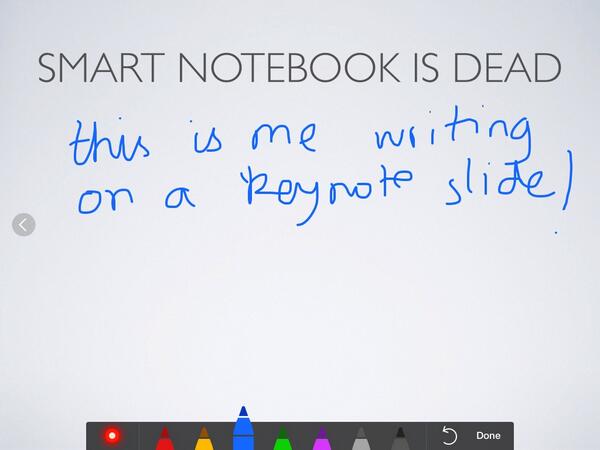
But since that decision was made, we discovered a cool new feature in the iOS version of Keynote.  The feature is officially called ‘highlighter’, which basically adds the ability to write with your finger when you are presenting mode. There has always been a laser pointer when you tap and hold, but now a set of coloured pens appear as well.  You choose the colour you want and can then write where you wish.  Instead of swiping between slides, you now get some arrow buttons on the left and right of the screen to change slide.  All of you annotations stay even if you change slide, but they disappear when the slideshow ends.

The particularly cool thing about this is that there is now another alternative to Notebook on iPad if all you want is slides and the ability to write on them.  The other cool thing is that, because of iWork file compatibility, you can make your Keynote slides on your Mac (or even on iCloud on a PC) and then use them for teaching on your iPad.  This is good for those teachers who don’t feel they will be as fast making slides on ExplainEverything because they have to be created on the iPad itself.  (I personally don’t think it’s any slower, but I guess it makes the transition easier.)  And with iCloud, the slides should ‘just’ be there (in theory!).

Here’s a slightly provocative screenshot:

Keynote

Getting rid of SMART Notebook

So, it’s been decided that from September 2014, Smartboards will be no more in our school.  The physical boards themselves will remain (as they are pretty good data projector screens), as will the speakers and projectors, but the USB cables will be ceremoniously removed from the Macs and Notebook software will be aggressively uninstalled from every Mac in the school.

Instead, teachers will be encouraged to use ExplainEverything, or even just Keynote (on Mac or iPad).  Or in fact anything they like.  If they just want a set of slides, Keynote will do the trick, and if they want interactivity, a mirrored iPad + stylus will suffice.  And if they want to just do some writing, there’s always a whiteboard and dry wipe pen!

Why the big move?

Well, for a long time I have had a particular dislike for Smartboards.  They are very expensive for what they are (a giant touchpad) and they never really work properly (always needing aligning, and once the surface gets damaged, are useless for writing). The Notebook software for the Mac isn’t really the greatest of Mac citizens, and using a giant but not always accurate touch interface to control OSX isn’t always very pleasant.  Apple has long realised that a touch interface needs a different user interface (as have Microsoft to a certain degree), but Smartboards seem to just try and fudge the issue.

Now that we have iPads, and the ability to mirror the display to the Smartboard display (via Reflector App), it in many ways removes the need for a Smartboard.  The interactive surface is freed from being fixed to one spot and can instead be wherever the teacher or child wants in the classroom. No wires!

The other issue is that Smart are now charging for their Notebook software via a subscription model.  It used to be that the software was free because everyone was buying the interactive boards.  But I suspect that schools aren’t buying or replacing boards very often (for example, we have some very old boards at our school), but are continuing to use the free software.  So Smart needs to make some money somewhere…

So we are left at a crossroads: do we pay (potentially) lots of money to keep using the Notebook software on interactive boards that increasingly don’t work? Or do we move away from a technology in its autumn and instead embrace the one that it’s still in its springtime.  It’ll probably be as popular as Apple’s position on Flash on the iPad, but I do think it’s the right thing to do.

Post iOS7

So, iOS7 is here.  Here’s a few reflections on how it’s been for us.

  • As I mentioned before, we were having some issues with charging our iPad minis.  After a summer of our reseller trying to figure out what was wrong and Apple finally acknowledging that it was an issue, it turned out that iOS7 had it fixed.  Which it has.  So that’s good!
  • Updating to iOS7 using Configurator I have found to be really quite reliable.  However, refreshing supervised iPads after this point as been a real mixed bag with me spending hours trying to convince iPads, one by one, to let apps be installed properly and so on.  Hopefully an update to Configurator will fix this.
  • Teachers have generally been ok with iOS7.  I can kinda tell which teachers use their iPads more by those who have upgraded and those who haven’t.  Teachers can actually be quite a conservative bunch, so not all have liked the change.  But the march of progress still progresses inexorably.
  • Automatic App Updates when using VPP apps held much promise but has failed to actually work.  What was worse was that the ‘Automatic Updates’ slider still tantalisingly appeared in the ‘App Store’ settings even when you weren’t signed in with an Apple ID.  But I could never get updates to actually update.  Oh well.  But I’ve not found a definitive answer on the Interweb, so maybe I’ll give it another go another time.
  • The promise of free iWork/iLife (minus Garageband) apps for new iOS devices apparently will work with the VPP programme.  At some point this autumn you will be able to request apps for those new iPads to be transferred to your VPP account and thus be distributed using Configurator.  Still waiting on that one though!  I think it’s all tied into the App Store licence management features which are still marked ‘coming soon’ on Apple’s website.

What has your experience been?

Thoughts on WWDC

It’s been a couple of weeks since Apple’s WWDC, so here are some of my thoughts.

The opening video

I really liked the ‘Designed by Apple in California’ video which opened the keynote. It’s clearly setting out what Apple is about and where it’s going, but it definitely feels more like an Ives/Cook vision rather than a Steve Jobs one.  Jobs’s Apple was about changing the world (as spelt out in the Think Different ad), whereas the ‘Designed by Apple’ video shifts the emphasis over to design –- changing the world one device and one happy customer at a time.  I like it, but it is slightly different.  It’s Apple finding its voice again, demonstrated too in the iPhone photos ad.  Apple is aiming at the heart, aiming at making every day lives ‘happier’ by the power of design. Or something.

Apple Stores

Apple Stores are clearly now Cook’s baby, and he seems to be doing well with them.  The creepy over-the-top store opening videos are a bit much though.

OSX Mavericks

I like the new name, picking a famous place from Apple’s home, California.  It ties into the whole ‘Designed by Apple in California’ thing as well, which is nice.  Sea Lion would have a been a good name though…

It didn’t seem like a dramatic update sort of release, but has a nice set of new features.  I’ve never heard Apple being quite so rude about their previous release (with all the jokes about not harming any cows in the making of ‘Calendar’), but they do have a fair point.  Maps and iBooks are obvious but great additions, and Finder Tabs and Multiple Displays make a lot of sense.

However, it’s the interesting stuff in the Core Technologies Overview, buried deep in the Advanced Technologies page, that I like.  Like how SMB2 is the default protocol for file sharing. This is (hopefully) going to make having Macs on a Windows Active Directory (even) easier and reliable.

Mac Pro

Nice. Even the mobile-friendly page that tells you all about it as you swipe down is nice. I wonder how much one of those canisters will set you back though…

iWork for iCloud Beta

Genius.  Hopefully it will work well too!  In some training recently I was showing teachers how to use iWork on the Mac and then how, via iCloud, how the documents can appear on their iPads.  Having the ability to edit these documents on a PC too makes iWork more and more of an Office killer.

iOS7

I’ve been wondering for a while what an Ives’ iOS would look like, and here it is.  It’s quite a big change aesthetically, but structurally iOS remains familiar and just as useable underneath.  The crusade against skeuomorphic design has been taken to a whole new level, and I wonder what will happen when iWork and iLife get an Ives makeover.

I do like the way that the interface is more dynamic.  Seeing the parallax scrolling animation on the home screen was one of those ‘wow!’ moments, making the background have a sort of hologram effect.  I’m pleased that the weather app finally gets some love, making it look as cool as some of the weather apps on Android or Windows Phone.

One thing that will make my life a whole lot easier when managing carts of iPads, is that app updates are now automatic.  Yay!  That’s going to save me hours of my life…

We didn’t really get to see what iOS7 looks like on an iPad, but I guess you can’t have everything.  I wonder if there are any exciting things up Apple’s sleeve for a bigger screen.

Teacher iPads

With great rejoicing, our class teachers all received an iPad 2 last week for use in the classroom for teaching and learning. As we’ve now got some class sets of iPad minis for children (which work really well! The sweet spot between affordability, size and therefore quantity you can put in a classroom. Maybe I’ll post about that sometime…), we had some older iPads that needed to find a new home.

I decided I would completely set up the iPads for the teachers rather than leaving some stuff for them to do. This took rather along time, but I reckon it was worth it in terms of saving precious time for teachers and making sure that everything was set up how I wanted it to be for teachers, rather than hoping they follow my instructions!

The steps were as follows:

  • Follow the setup assistant, entering in the wifi code and agreeing to various stuff.
  • Set up the Apple ID for each teacher using the school email address.
  • Enroll the iPad to our MDM server (the glamorous Mountain Lion Server Profile Manager). This then automatically sets up the email settings (as described in a previous blog). I then could verify the email address for the Apple ID straight from the iPad
  • Begin redeeming VPP codes on each Apple ID. This was a bit time consuming, but was sped up by emailing the URLs found on the VPP spreadsheets
  • Hand to teachers, after pushing out a profile that requires a passcode on teacher iPads

It was a lot of tapping and then waiting, so I tended to try and do several iPads at the same time, swapping between the two whenever I had to wait before tapping the next button.

The results so far have been teachers making use of iPads in lots of unexpected but very sensible ways. Such as taking photos of children’s work, modelling how to use an app whilst reflecting to the big screen, prepping for an iPad lesson, using the iPad to differentiate for SEND children, keeping up to date with emails etc etc. I’m hoping it will help teachers think of more and more creative ways of using iPads as a tool for learning in the classroom.

Apple Configurator Tips and Tricks

Apple Configurator is the tool Apple supplies (for free) for managing large quantities of iPads. It relies on a wired USB connection and can sync with up to 30 iPads at one time (so long as you have the right USB hardware, like a a iPad charge and sync box).

The advantages of using it are:

  • You can update iOS on multiple iPads at the same time
  • You can use it to install VPP app (so long as the iPads are in ‘supervised’ mode), and have the facility to retrieve the app codes at a later date
  • It’s much faster than using iTunes
  • You can specify a bespoke lock screen on all your iPads, including putting the device name on it
  • It can name iPads sequentially (i.e. iPad 1, iPad 2 etc) by the order you plug them in when in ‘prepare’ mode
  • When a device is ‘supervised’, you get all sorts of extra restrictions available to you, such as the ability to turn off Game Centre and Messages
  • You can install enrolment profiles and configuration profiles easily

The disadvantages of it/things to bear in mind are:

  • It can be a bit crashy, especially when you’re plugging in a lot of devices
  • When a device is supervised, you cannot then plug it into iTunes or iPhoto on any computer.  This limits using the USB cable to move data on and off the device, except in Configurator.
  • VPP apps can only be installed with ‘supervised’ mode and have to updated via Configurator
  • It can sometimes come up with cryptic error messages if you’re not quite using it in the correct way

It’s important to understand how Configurator works before trying to use it.  Apple do a useful video, and Fraser Speirs and Bradley Chambers do a great couple of podcast episodes about Configurator.

However, here are a few of my tips and tricks:

  • Don’t try setting up 30 iPads at the same time.  When Configurator ‘supervises’ a device, it wipes iOS and reinstalls this. If you’re doing this with 30 iPads, I’ve found that Configurator crashes and quits.  About 8 seems to work fine.
  • Updating apps on multiple iPads seem to work fine.  Bradley Chambers has a great tip on easily finding those updated apps.
  • When installing enrolment profiles, make sure that you install a wifi profile first, otherwise it won’t work.  Then just check the iPad is awake and connected to wifi before installing that profile.
  • If you install a profile which restricts installing apps (thus removing the App Store off the iPads), you won’t be able install updates via Configurator.
  • Never ever have iTunes and Configurator open at the same time.  Otherwise you’ll end up with an iPad in recovery mode and will have to restore it in iTunes before using it in Configurator.