Gigabit Ethernet

Today our trusty and heroic ICT technician installed gigabit Ethernet switches across the school, whilst our patient and long-suffering teachers put up with occasional blips in network connectivity. And the result? Faster than fast: remote desktop becomes a dream, gigabytes of files copy in minutes, generally the network plays nicely. The only issue is that our ageing .local server doesn’t have a gigabit Ethernet card. Ho hum!

SMART Notebook 11

Well, SMART Notebook 11 is here. And it’s not bad. It feels a lot more up-to-date, particularly on the Mac version, and includes interesting features like the ability to embed a live web page onto a page. Stability is also good, as is compatibility with Lion. It seems like a good, solid update and we’ll be rolling it out across the school when we reimage during the holidays.

However, not the same thing can be said for ‘Smart Ink’, a bit of software that installs with the Board Tools, which are the drivers needed for running any attached Smartboards. Smart Ink puts a little horrible green button onto every and any window, allowing you to write all over the window and then move the window around, keeping all the writing attached. Not a bad idea I suppose, but it does add a whole level of ugliness to the OSX interface, which isn’t good. The fact that the green button wobbles around the screen in a very Windowsy way whenever a window is moved doesn’t help either. Hmmm.

But in SMART’s defence, I was impressed that every ageing Smartboard we attached to our new Mac minis did seem to work fine. That sort of backwards-compatibilty is very un-Apple, but saves us a load of money!

10.7.4 has a spring loose

Whilst imaging the Mac minis, I’ve discovered a rather annoying bug in Lion’s 10.7.4 update that makes the URL icons in the dock disappear.  Instead of being a natty ‘@’ spring, they now just appear as a blank space.  We make use of the fact you can put URLs into the dock via Workgroup Manager to allow children to automatically log into Purple Mash, and so this is rather annoying.  It’s also annoying because I’ve imaged several Macs already and don’t want to have to go and fix them.  Some people have suggested a fix for the problem, but I’ll probably just wait until an official fix comes through Software Update.

Imaging Mac minis

Today I had the fun job of unpacking a key stage of Mac minis. They’re to replace ageing PCs running smartboards and will, once installed, pretty much complete the replacement of PCs with Macs in the school. Hurrah!

In preparation for reimaging the rest of the machines to Lion in the summer, I built a fresh image from scratch. As nearly all settings are managed by the Mac Server and so it’s just involved lots of installing of software. I’m trying out the new Notebook 11 as well, though haven’t had much chance to play with it.

I won’t try using the Mac server to image machines until we get gigabit switches installed though…

Hypothetically Managing iPads

Here’s the scenario: say my school, instead of buying a couple of class sets of iPads, rather wanted to spread the iPad love and goodness around the school a bit more by giving class sets of 6 to certain year group and a sprinkling of iPads in the Foundation Stage.  What would be the best way of managing them?  The areas that need managing are as follows:

  • initial setup – registering devices, giving the names etc.
  • locking down certain features (app deletion, other parental controls)
  • initial purchasing and installation of apps – making sure that they are properly licensed
  • ongoing updating of apps and iOS
  • further installation of apps, as required
  • email address for each iPad –setup and creation
  • general ease and manageability of any of the above tasks that teachers would then have to do
  • backing up of documents and data
  • access to the school’s shared drives

There seems to be two main approaches out there and two pieces of technology that are helpful.  I’ll start with the technology.

Profile Manager on Lion Server

This rather natty set of server tools seems to allow you (from what I have figured out from reading the Interweb) to do the following:

  • track the devices on your network
  • restrict and manage certain settings on iPads
  • remotely setup things like email on iPads
  • install free apps over the air (apparently – not so sure about this one)

It’s all done through pushing, via Apple’s Push Notification servers, little XML files with configuration information.  See, no wires!

We have a Snow Leopard Server and are upgrading to Lion server in the next month, so this is a no-brainer to use for ongoing management of iPads.

Apple Configurator

This is a Lion-only app that lets you setup, supervise and assign to users any iOS device.  It’s a wired solution, requiring a USB connection, but lets you connect up to 30 devices at once. This looks like it will be very useful for the initial setup of an iPad as you can restore from a backup, set certain text on the lock screen, enrol a device to Lion Server and other fun things. This will definitely be useful too.

Managing the iPads

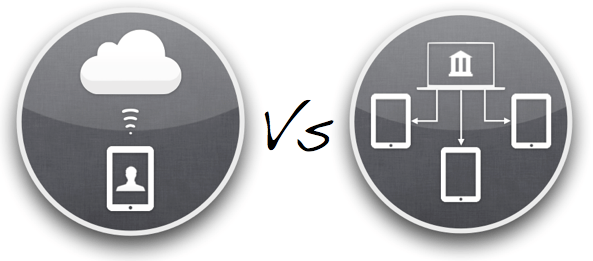
The management of the iPads then boils down to the question of Apple IDs.  Will we have one Apple ID that is shared across all the iPads through a wired syncing solution via iTunes?  Or will each iPad have its own Apple ID unique for that device?  Apple talk about this distinction as the difference between  ‘Institutional Ownership Model’ and a ‘Personal Ownership Model’. In our school, all app licences will be owned by the school, as the devices will be shared within classes, so the issue is more of whether it’s a wired or wireless solution.  Will the iPads be tethered to an iTunes account, requiring regular syncing and backing up, or will they live free, backing up and syncing data with the iCloud?

Maybe I need a table at this point…

Aspect Tethered iCloud
Licences With no volume licensing in the UK, either multiple apps aren’t licensed or lots of time has to be spent ‘gifting’ apps to spoof email accounts. Each app is fully licensed for every device. Will require lots of iTunes gift vouchers for each Apple ID!
Setup Create one ‘golden’ iPad master, back it up and then restore to every other iPad. Simples! Requires creation of every Apple ID, manual installation of apps on each device. Faffy at the start.
Maintenance Termly/half-termly syncing of all iPads to iTunes account. As the iPads will be thinly spread around the school, this would involve buying USB hubs for each classroom to sync to the teacher’s Mac Mini, buying a MacBook Air to wander around the school syncing iPads, or gathering up all the iPads into one place. Could be tiresome! iOS updates can be done with a tap. App updates just involve entering a password.
Adding new (free) apps Download apps on master iTunes account and then syncing them to the iPads. Probably couldn’t happen very often. Get kids to find the apps on the app store and then download. Simples! Would involve a bit more tapping by a teacher on each iPad in Foundation Stage.
Backups Plugging into iTunes to backup. Backing up to iCloud for each iPad whenever it’s being charged.
Additional costs Buying expensive syncing stations. Time at initial setup. Can our bandwidth cope?

At the moment I’m erring towards the ‘iCloud’ solution, mainly because, once the device has been setup, it can lead a simpler life in the classroom without cables and iTunes and faff. But we’ll see!

iTunes App Licences

Just been having a (thrilling) read through the iTunes Terms & Conditions to clarify a few things about purchasing iPad apps for multiple iPads.  Do you need one Apple ID for each iPad?  Or can you use a sync & charge device to copy your purchased apps onto 16 other iPads?

Here are some suggestions I’ve had:

  • You can have up to 5 iPads attached to one Apple ID, so you’ll only need to buy apps for a fifth of your iPads.
  • Set up one master Apple ID, load it up with iTunes gift vouchers and then gift all the apps to Gmail accounts you have made for each of your iPads.  That way you’ll be licensed, but don’t have to set up an Apple ID for each iPad.

The only problem with these is that it doesn’t reflect the iTunes Terms & Conditions!

1. With serial users on one iPad, you must have one Apple ID per iPad

It’s a bit of a pain, and I wish that Apple would hurry up with their Volume Purchase Program to make this easier.  But even with that, if you buy 45 copies of ‘Pages’, you still get 45 app codes that need to be redeemed on the 45 Apple IDs on your 45 iPads.  The process might be easier but it still assumes one Apple ID per iPad for serial users.

2. You can’t use an iTunes gift voucher balance to gift apps

In order to gift apps to a multitude of iPad email addresses, you’d need to to set up the school credit card on one of the Apple IDs (with a hefty credit limit… 45x£50=£2250).  Or just buy gift vouchers for each iPad.

Now, all of this is me talking from no experience whatsoever! I’d love to hear what other people are doing out there when it comes to managing multiple iPads.

Storing and securing iPads

Now I understand that securing and charging multiple iPads is not necessarily easy or cheap, but part of me is very loathe to spend £1,000 on a fancy charge/sync/secure flight case for £4,000 of iPads.  Maybe I should see it comparable to spending £200 on a desk for an £800 iMac.  Or maybe I should think outside of the box.  Or inside another box.  Or something.

Anyhoo, maybe IKEA might offer a better solution.  I’m looking for a way to store and charge 6 iPads for a class set.

  • £45 for an IKEA PS lockable cabinet, complete with hole in the base to feed through a power cable
  • 6-way power adaptor to plug in 6 iPads to charge

Marvellous!

New school website!

Our school’s new website is now live – hurrah! I’m pretty impressed with how it’s turned out, mainly due to the elegant and powerful wonder that is WordPress. It hopefully should be easy to update as well, particularly once I’ve shown the senior leaders how to add posts and edit pages.

For those who know which school I go to, the website is www…sch.uk. For those who don’t, post me a comment and I’ll email you the link!