LEGO Spike Essential

Back in the early 2010, Mr LEGO himself introduced us to the original LEGO WeDo kits as a way of teaching the robotics/control part of the then primary ICT curriculum. Through a USB hub, children could use block-based coding to interact with LEGO models incorporating a motor, a tilt sensor and motion sensor. We used these with our iMac suite and children and teachers loved them alike.

In 2016, LEGO released WeDo 2.0, with a battery-powered Bluetooth hub that could pair to Mac, PC, Chromebook and iPad. We were just beginning our 1:1 iPad journey, and in 2017 we ended up buying two class sets of these kits with the proceeds of the sale of the iMac suite that was no longer needed.

These kits have since served us well, offering an engaging building and coding experience for children, with corresponding curriculum resources in the WeDo app.

Reflecting on the many years of use, there were some pain points:

  • Sorting out kits. The kits do come with a labelled sorting tray, but it takes a high level of obsessional conscientiousness to keep everything in order.
  • Missing pieces. Kids lose LEGO pieces, either through carelessness, leaving them in random drawers or even theft, so a visit to LEGO spares was regularly required.
  • Length of builds. The models that LEGO provides instructions for are really cool (like a Mars rover, a simulation bee or a race car) but they all take quite some time to build, particularly if children aren’t used to playing with LEGO. Often, this meant having a ‘build’ lesson followed by a separate ‘code’ lesson, with plenty of time in between for pieces to get lost.
  • Battery drain. As the kits connected wirelessly, they had a tendency to chew throw AA alkaline batteries, adding an ongoing consumable cost as well as the hassle of taking apart the models to put fresh batteries in mid-code.

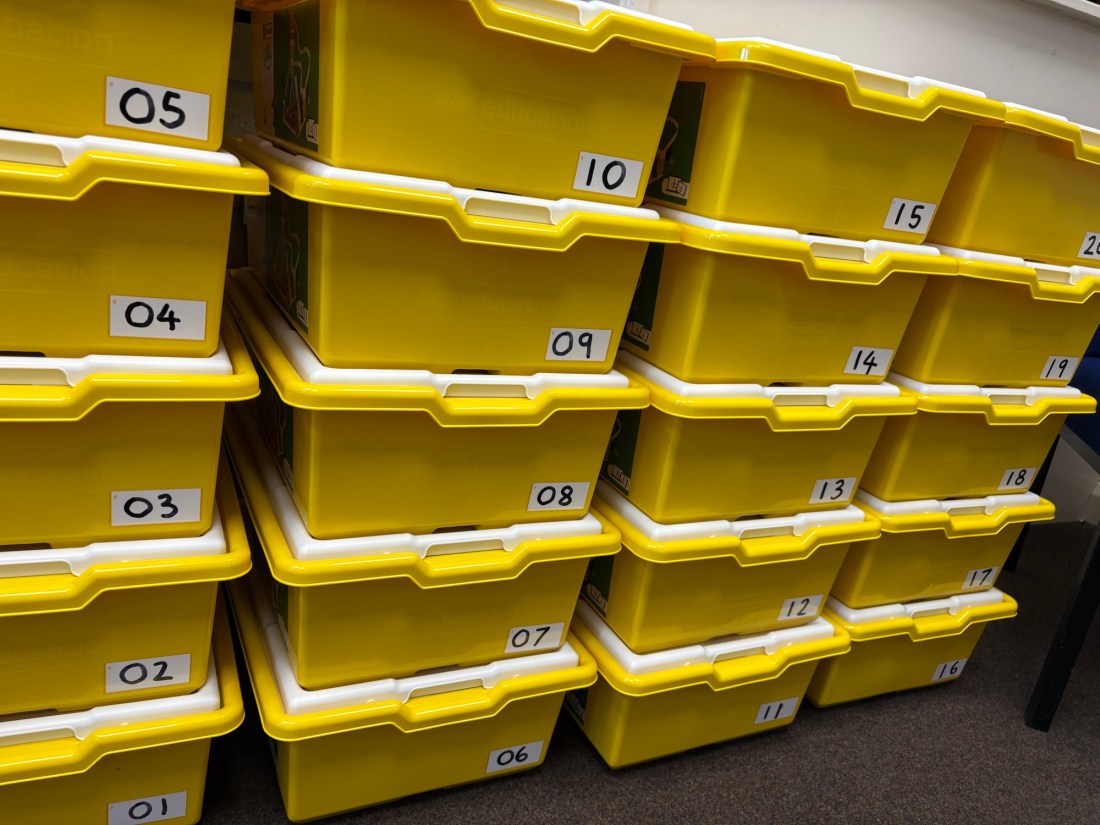
After an epic 8-year run, I felt it was time to upgrade to the newer Spike Prime Essential kits. With the happy delivery of two classroom sets, here are my thoughts so far…

Happy delivery!

Thoughts on LEGO Spike Essential

The app

There is a LEGO Spike iPad app, as well as Chromebook-friendly web app, complete with build instructions, curriculum resources and coding environment. The coding comes in two flavours: younger-learner-friendly code blocks that are placed in a horizontal row and older-learner text-based blocks that are placed in a vertical list. This makes for a smooth transition to the more secondary-appropriate LEGO Spike Prime. The app is well-designed and pretty lightweight and links out to curriculum resources on LEGO’s website.

Curriculum Resources

LEGO have created a large bank of lessons with corresponding models. They are linked to a range of possible different subject, such as STEAM (science, technology, engineering, art and maths) as well as computing. Each lesson has some sort of problem that the LEGO characters are trying to solve and then the app guides them through building a model and putting suggested code together. The Spike app literally shows learners how to combine the code blocks, which means that all learners are able to get the model working. The lessons then pose a couple of challenges: one is to adjust the code to try and solve the initial problem in a different way; the second is to alter the build. This combination of structured guidance and open-ended exploration means that the learning can be low-threshold yet high-ceiling.

Model Design

What’s really nice is that the models are generally much simpler than WeDo 2.0, meaning that they can easily be built and then put away within one lesson. Fun as building LEGO models is, our use of these kits is to teach our computing curriculum and so this definitely helps! They also have more of a child-like design, having just enough pieces to make the models work and to communicate what they are meant to be, without the added complexity and finesse of consumer LEGO models.

Rather controversially, the kits are a complete mashup of System and Technic bricks. I think this is probably inevitable as the moving parts of robotics needs the joins and axles of Technic, and the primary-age focus needs the simplicity of building with ‘normal’ bricks.

The Hub and Accessories

The Bluetooth hub is a clever piece of kit, with a lithium-iron rechargeable battery (for longer use between charges) and a built tilt sensor. It allows for two accessories to be connected at one time, with ports labelled A and B.

There are four accessories to choose from: two motors, one light sensor and one 9-pixel display block

The motor blocks can be both connected at the same time and then controlled with a ‘movement’ block in the app, allowing for an easier way to make wheeled models that can move forward and backwards as well as rotate left and right. The motor blocks also have an awareness of position, so they can turn to a certain angle, as well as fully rotate.

The light sensor block shines a light to detect the colour of a brick, which allows for all sorts of fun ways to trigger code. It can detect nine different colours.

The 9-pixel light block, with a 3×3 matrix display, can be programmed to shine any nine colours from its nine pixels. This provides lots of potential without too much complexity.

Kit Organisation

There are two trays with four compartments each, beautifully labelled to indicate which pieces go where. By organising the bricks by colour, this makes it really easy to both find the bricks you are looking for but also to put them back in the right place when you’re done. In a classroom with lots of potential for kits to get mixed up, this is a very thoughtful design!

Spare Pieces

Each kit comes with a box of spare parts, which a really nice touch. Admittedly, it doesn’t contain every single LEGO piece in the kit, and undoubtedly the piece you need is the piece not in the spares, but it definitely is a help! These LEGO kits will be shared between students and classes and bits always go missing, so these spare parts should definitely help with the longevity of the sets.


All in all, I think LEGO Spike Essential is great!
Computing with iPad

Ever since the arrival of the National Curriculum subject ‘computing’ in 2014, figuring out how exactly to teach computer science and coding in a Primary school has become a hot issue. Using a Mac or PC (or even a Raspberry Pi), there are some obvious contenders: ‘Scratch’ from MIT, maybe a bit of ‘LOGO’ or even some ‘Python’ for the more adventurous. But what about the iPad? Can computational thinking and an understanding of algorithms be taught using Apple’s intuitive and easy-to-use touch screen device?

There has been a range of coding apps for iPad right from the start, but only recently has the iPad started to really shine when it comes to learning to code. Here are three strong contenders.

codeSpark Academy with The Foos

This paid-for app (with free access for educators) aims to teach the basics of computational thinking to children aged 4+ with a fun, visual and no-words approach. It’s based around five different characters, called ‘The Foos’, who all have different skills and abilities that can be used to solve problems to try and catch the elusive ‘Glitch’. Using an intuitive interface and attractive 3D graphics, it quickly teaches children about sequencing, loops, events and conditions. There is also a curriculum that teachers can download, including ‘off-line’ activities to help explore coding concepts further.

We tried out using codeSpark Academy with our Year 1 children as part of the Hour of Code in December, and are now using the full app this half term as part of their computing lessons. I really like how it uses puzzles to really get children to think and increasingly harder levels to teach new concepts and consolidate learning. Definitely worth taking a look!

LEGO Education WeDo 2.0

Version 1.0 of LEGO WeDo was first released in 2009 and offered a simple way to teach robotics and coding to 7-11s using LEGO bricks. A USB hub connected various sensors to a computer, such as distance and tilt, as well as a motor. Following the onscreen building instructions in the software, children could construct various models and then use block-based coding to program them, e.g. making a crocodile shut its mouth when something is put inside it. We’ve been using these kits for several years and children love them: it’s accessible computing and you get to build with LEGO!

In 2016, LEGO announced WeDo 2.0, with brand-new models and parts and a Bluetooth hub to connect the updated sensors with iPads and Chromebooks, as well as PCs and Macs. The new WeDo 2.0 is a free download (obviously requiring the paid-for LEGO kits) and includes all the build instructions and a range of ‘Guided Projects’, both for science and for computing.

Version 2.0 is a really strong upgrade, both in terms of the hardware and iPad compatibility, but also in terms of the pedagogy; it requires problem-solving skills and creativity from children to both build and extend models as well as design the code required to complete the different projects.

Swift Playgrounds

Debuting at WWDC in June 2016 and launched last Autumn, Swift Playgrounds is a truly remarkable piece of software. It aims to teach children (Year 7+, but definitely accessible at the start for those in Years 5 and 6) the foundations of computational thinking whilst using real Swift code – a programming language Apple created that is used today by professional developers in many popular apps. Many other computing apps take a ‘block-based coding’ approach, where students can drag and drop pre-defined blocks of code and combine them to create a program. This is great for teaching the concepts of computer science, but leaves a chasm of confusion when students try and code using a typed language. Swift Playgrounds overcomes this by using written code from the start, but code that can be selected from smart autocorrect suggestions above the keyboard and then can be dragged around as if it were a ‘block’ of code.

The app is also really fun to play! On the right of the screen is a 3D world that you navigate to solve puzzles, entering code on the left of the screen. The puzzles can be quite challenging, requiring student to think carefully, spot patterns and apply the skills they have learned in a variety of ways. As you progress through the levels, it really does teach you how to think like a programmer through crafting efficient, reusable and readable code.

Accompanying each of the ‘Learn to Code’ books in Swift Playground is a multi-touch book that teachers can download. These provide a full curriculum to help with teaching using Swift Playground, complete with Keynote slides for each lesson.

All three of these apps show how iPad has really grown up as a platform for learning computational thinking.

Quicker and Easier on iPad

At the end of last year, we did some monitoring about how Showbie was being used in our school. One of the insights from that was all of the work that was done in Computing could be done quicker and easier on iPad rather than using an iMac.  In our school, children have a timetabled ‘Computing’ slot when they get to go and use the iMac suite.  The children do enjoy it, but in this increasingly mobile age, children are just not as familiar with using a mouse and keyboard, let alone using an arguably more complex desktop operating system that is OSX. Perhaps they just need the practice, but actually the iPad allows children to achieve remarkably complex things (visual programming, video creation and editing etc.) with relative ease.  If we add in the simple but powerful e-portfolio workflow that Showbie offers for iOS, iPad increasingly comes up tops when compared to Mac.

So, what apps do we use for Computing on Mac and how can iPad replace/improve them?  Is it possible to go ‘iPad Only’ with Computing?

Email

We use LGfL’s London Mail to provide safe and restricted access to email for students during certain Computing units. It’s hosted by Microsoft and is accessed via a web browser.  It works fine on Mac as well as iPad, but on iPad it’s super easy to screenshot learning and add it into Showbie.

Visual Programming

We already use Hopscotch, Kodable, A.L.E.X. and Daisy the Dinosaur on iPad to teach coding using pre-programmed blocks.  On the Mac, we use Scratch, a great coding environment created by MIT. There is a (literally) junior version of it called Scratch Jnr, which is suitable for younger children but unfortunately they haven’t released a full iPad version yet.  However, there are other alternatives out there, such as Tynker.

Typed Coding

When we developed our Computing curriculum a few years ago, we included a strand which focused on getting children to type in computer code, starting with learning to type, then moving onto languages such as LOGO and Python. You can get typing apps for iPad, and even ones for LOGO and Python. Fun as it has been to introduce these to children, I think that they might be just a bit too tricky for Primary aged kids, so instead we’re going to introduce some more fun iPad coding apps.  Like Floors (which allows you to design your own platform games…)!

iWork

Pages, Numbers and Keynote are as fully-featured on iOS as a Primary school kid would need, so no contest there.  And are arguably easier to use.

iLife

iMovie on OSX is powerful, but it does add so many steps to the movie-making process: capture video on another camera, then import into Mac, then edit. iMovie for iPad is so simple and easy to use to use, with the advantage of being able to do everything on one device.

LEGO WeDo

The only sticking point was LEGO WeDo, a simple programmable LEGO kit.  WeDo 1.0 runs of a wired USB hub to connect the motor/tilt sensor/motion sensor.  However, LEGO have recently announced WeDo 2.0, which connects via Bluetooth to an iPad…yay!  I recently had a play with it at BETT and it was really great.

So, I think that going all-in on iPad for Computing can work!

Coding Evening

Last Thursday, I had the privilege of attending and briefly speaking at a Coding Evening at the Mozilla HQ in London. The event was run by my fellow ADE Cat Lamin, who started these events a year or so ago to provide an informal and relaxed atmosphere to learn about how to teach ‘coding’ in primary school and to try out different kit. The new ‘Computing‘ curriculum in the UK is ambitious and probably a really good idea, but I think it does terrify a lot of teachers and I’m not sure all teachers are suitably trained or equipped to deliver it. Hence providing a space for teachers to learn a bit more!

The evening run regularly in Peterborough and Twickenham, but the central London one was a one-off special event, complete with free drinks and pizza thanks to sponsors! It was pretty cool to hang out in what was basically the Mozilla staff room (they have what is quite possibly the largest TV screen I have ever seen), but it was also great to meet new people and learn new things.

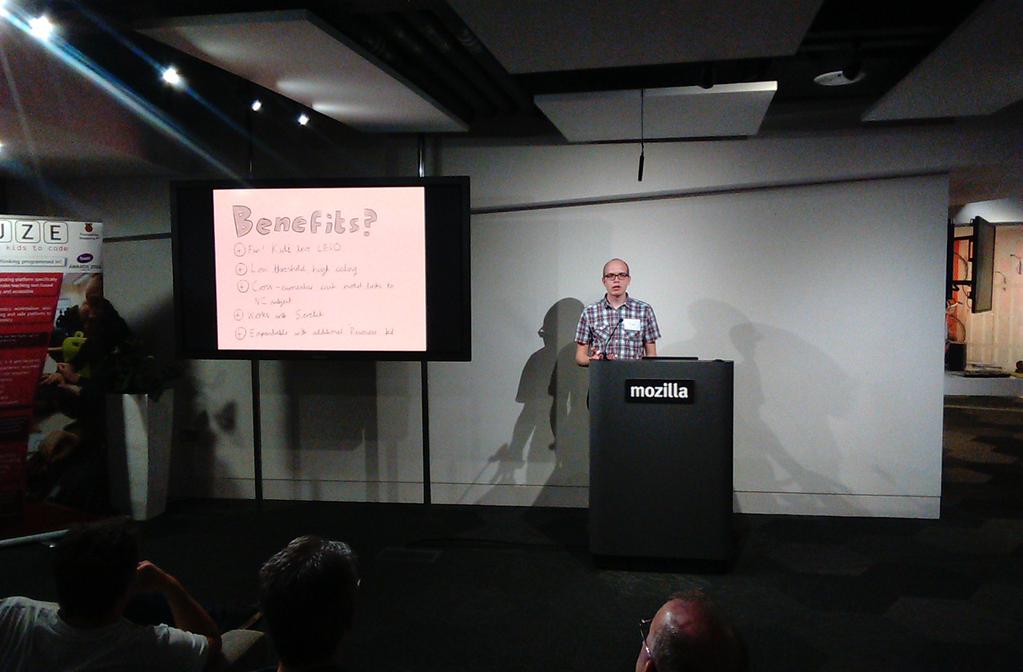
As part of the evening, there was a string of ‘lightning talks’ from different people about how they’ve done interesting and cool stuff with coding in schools. I got the chance to share briefly about how we use LEGO WeDo, which I think went down well.  There was also different companies representing their wares, which was interesting:

  • A guy called Marc Grossman was there, demoing Scratch, Kodu and Code Club. Scratch is a great visual programming tool designed by MIT, and Kodu is a cool 3D game designer from Microsoft.  But what really impressed me was the resources he shared from Code Club.  Code Club is a not-for-profit organisation that gets volunteers to run coding clubs in primary schools. What is really handy is that you can download the worksheets etc. that they use and deliver it yourself. I shall be making use of that!
  • A plucky upstart company called Pi-Top were demoing their product, which was essentially a green laptop that runs off a Raspberry Pi. It did seem pretty cool, and reminded me of my childhood days playing with a ZX Spectrum and figuring out how to make things work.
  • There was also a company called FUZE there, who make a computer for schools that is basically a robust keyboard case that houses a Raspberry Pi.  What is unique about them is that they include their own version of BASIC for children to use, claiming that introducing more complex languages like Python to children just puts them off coding, rather than hooking them in. This was an interesting challenge to me, as we have included Python in our Computing curriculum at school, which admittedly is hard for teachers and children to get their heads around. I’m not sure I’d want to introduce a set of computers that would need to be plugged in and set up each week just to teach Computing lessons once a week.

It was a really excellent evening and I would recommend it to anyone who wants to get their head around how to teach Computing in school.