Setting up iPads pt.2

Or, Spectacular, Spectacular!

Today we had a go at setting up all the iPads. It was not entirely successful, perhaps even spectacularly disastrous, but definitely informative.

Here was the plan:

  1. Setup Apple ID on one device per class set, redeem iTunes vouchers and then download required apps
  2. Backup to iCloud
  3. Restore from iCloud on the other iPads in the class set
  4. Sit down and have a cup of tea, marvelling at how quick and easy all that was

Alas, no.

iTunes vouchers

Didn’t think this would be a problem, as our Apple reseller sent us enough iTunes voucher codes. However, two of them weren’t working so I thought I would just buy some from my own iTunes account and then claim back the expenses. The first try worked, but when I tried to create a second gift voucher, it just wouldn’t let me. Instead we had to take a trip to Morrisons to physically buy a second voucher. Hey ho.

Download apps

Setting the apps going was very simple as I had emailed a list of iTunes URLs to the iPad. A few taps later, all the apps had been bought and were starting to download. However, I hadn’t reckoned on the school’s 20mbps connection and the large size of apps like Pages, Keynote and Numbers. It took about an hour to download 6 iPads of apps…not pleasant!

iCloud backup

The backup to iCloud was easy peasy, as was the restoring from backup (to begin with). However, we then hit issues of iPads not thinking we were in the UK and then promptly deleting all the pending apps.

There was also the issue of the lock screen names that Apple Configurator had done for us. To get round this, you just had to plug the iPad back into the Mac with Apple Configurator on and let it reapply the name and the configuration profiles (for wifi etc). This had to be done before entering any passwords and re-downloading apps.

I’m hoping that leaving the iPads in their boxes happily downloading apps overnight will result in a set of setup iPads in the morning. I’m also hoping that the pain at this point will result in slightly more straightforward day-to-day usage of the iPads. Hopefully!

Setting Up iPads pt.1

Yesterday I finally had the time to start setting up the iPads at school. Yay!

The first job was to get the wifi going. We’re putting in Ubiquiti’s UNIFi wireless access points, which seem pretty good but also very reasonably priced. They have ceiling-mountable access points which can then be configured by a web-based controller you install somewhere on your network. All the points aren’t in yet, so I just had one sitting on the table in the room I was in. I couldn’t get the controller to work for a while, but thankfully our amazing technician got it working (something to do with conflicting ports).

I could then begin unboxing iPads. They came in bigger boxes of 5, so it was a case of entering the serial numbers on a spreadsheet, labelling each one and then making a big pile of the smaller, white boxes. Opening the first few is fun, but it does get a little tiresome after a while!

The next step was to use Apple Configurator to do a simple bit of setting up, mainly just to set it so that a custom wallpaper and iPad name appears on the lock screen. To do this, I had to use the ‘supervise’ mode, which means the iPad can only be connected to the one Mac which you’re running Apple Configurator on. This could be a real pain with syncing carts and iTunes, but I’m planning on running a completely ‘cloud’ setup, requiring no wired syncing, so this should be ok.

I didn’t manage to figure out how to deploy configuration profiles at this point, as I was hoping to set up wifi using a configuration setting rather than doing it manually. I didn’t finish them all though, so I might try that when I finish setting up the rest of them.

Here’s what’s left to do:

  • Create all the relevant Apple IDs (one per class)
  • Create @me.com email addresses
  • Decide on and download the apps on one iPad per class
  • Backup that iPad to iCloud and then restore it to the other iPads in the class set
  • Put on Parental Controls to stop apps being deleted
  • Set up iWork apps with an internal WebDAV server
  • Setup classroom macs so that downloads from iTunes automatically install on the class iPads
  • Put in cases and deploy!

Not too much really!

Giving up on Profile Manager

The promise of Lion’s Profile Manager seemed good: a nearly free way of managing all the macs and iPads on your network, pushing setting etc over air using Apple’s Push Notifications.

Except I can’t get it to work. The issue is that when you try and enrol an iOS device, it complains that the certificate is invalid. I’ve searched hi and low on the Interweb for solutions, and even tried out a few. However, the result has been even more of a mess, as far as I can tell!

45 iPads arrived at school today, just waiting for me to set them up ready for September. I was hoping to use Profile Manager as part of the setup process, but I think now I’ll just have to make do with Apple Configurator and iTunes. Hey ho.

Maybe more joy will be to had with Mountain Lion Server?

These guys at Amsys seem to have gotten it going, if anyone’s interested.

iCloud and class iPad sets

After our Lion Server upgrade and a (probably) lengthy discussion with one of Toucan’s finest engineers this coming Monday, I’m planning on ordering iPads for our school. We’re going for some class sets of 6 for Year 5 & 6 classes and then smaller class sets for Reception and Nursery. However, the issue still remains of how we’re going to manage them, particularly regarding AppleIDs. Here’s a solution I’m now considering…

Class iCloud accounts

Because we’re not going for complete class sets of iPads, sharing one AppleID and iCloud account may well work for each class set

  • Set up an AppleID and iCloud for each class set, with a catchy name like myschoolyear5ipads2@me.com or something.
  • Set aside money in the budget to pay for full licensing of apps once the Volume Purchase Programme comes to the UK. Not ideal, but neither are the alternatives.
  • Turn on automatic downloads of new apps on each iPad in the class, plus on the teacher’s iTunes on their Mac. This makes adding new (free) apps on the class set super easy!
  • Turn on documents in the cloud and iCloud backup. This means that children can pick up any iPad and their documents will be there. Hopefully won’t result in horrible syncing issues.
  • Setup the same me.com email on every iPad. Teachers can then email the whole class set at once.
  • Turn off photostream – pity needs to be shown for our wireless network!

Or something. What are the potential issues with this idea?

Simple

“It used to be ‘simple when you know how’ but now it’s just ‘simple.'” That’s how Abdul Chohan from Essa Academy summed up making use of the Apple ecosystem in his school (AppleTV, iPod Touch, iPad and Mac). However, watching one Apple Distinguished Educator (ADE) try and demonstrate an iPad workflow to a room of beginners made me think that using iPads in schools is not always as easy as one might think.

The South London Apple Education Leadership Summit was pretty good fun though. It was held at the Kia Oval, with fantastic views of the cricket ground (and cricketers) as we drank coffee beforehand on a sunny balcony. Great hospitality and very friendly delegates.

The events started with an Apple spiel, explaining Apple’s commitment to education right from the beginning and how the iPad is part of the disruptive post-PC world. I’m not sure quite how true the historical sketch was, but I liked the comparison to the introduction of the printing press (One book per student? Are people crazy?). There was also the emphasis of the 4 sources of content for the iPad – web, iTunes U, iBooks and App Store. I am eager to get my hands on iTunes U a bit more once we get some iPads in!

Then came a case study from the principal of Fitch Green Primary in Essex. She showed loads of clips and videos of the impressive work children had been doing with Apple devices. It was very inspiring (sickeningly even!). She talked about the importance of getting children to think and mentioned how the National Curriculum has, in a sense, deskilled teachers as they don’t have to think as much. Perhaps.

Joe Moretti, an ADE, then talked us through lots of different apps we had on our (Apple-supplied) iPads. The wireless USB microscope was pretty cool.

A brief introduction to a new purchase programme then followed, which allows parents to contribute to a school hire-purchasing iPads. This includes a very comprehensive insurance package as well. Might be something to look into…

Before and after lunch was a hands-on workshop about the iPad from another ADE. I went to the ‘introduction to the iPad’, which was I think aimed at those who had never really touched an iPad before. It was quite helpful for seeing how to introduce the iPad to members of staff. There were quite a few questions about the practicalities of deploying iPads and quite a lot of confusion about getting files on and off iPads. DropBox was promoted highly as a solution to this, but it still seems pretty fangled to me. Maybe I need to look into it more.

One thing that particularly interested me was a mac app called Reflection. This allows an iPad to be mirrored to the screen of a Mac, wirelessly. It’s only $15 and could well be a cheaper solution to an AppleTV. My concern with the AppleTV is that it’s adding one more layer of complexity with the projectors – switching sound sources on amps, changing the projector channel etc. If it works, that would be awesome!

The event closed with a talk from Abdul. He covered much ground to what he said in January, but put in a bit more detail about how they use the iPod touches that they have deployed to every child. What struck me was how they always ask ‘why’ when evaluating traditional education technology (such as the über-expensive IWB) and spend the savings they make on Apple kit instead. Nice.

I came away feeling that it was a useful time, but now I think I want to go to a more super-technical Apple event. They did say they would be trying to organise one, so we shall see.

Learning with Apple

I’m currently on the bus, on my way to the South London Apple Education Leadership Summit… should be fun! There’s very much going to be an iPad focus, which is good as I want to really get my head around the best way to deploy, use and manage iPads in a school. I’m not sure how technical it will be, but hopefully there will be some techy people there for me to interrogate.

Hypothetically Managing iPads

Here’s the scenario: say my school, instead of buying a couple of class sets of iPads, rather wanted to spread the iPad love and goodness around the school a bit more by giving class sets of 6 to certain year group and a sprinkling of iPads in the Foundation Stage.  What would be the best way of managing them?  The areas that need managing are as follows:

  • initial setup – registering devices, giving the names etc.
  • locking down certain features (app deletion, other parental controls)
  • initial purchasing and installation of apps – making sure that they are properly licensed
  • ongoing updating of apps and iOS
  • further installation of apps, as required
  • email address for each iPad –setup and creation
  • general ease and manageability of any of the above tasks that teachers would then have to do
  • backing up of documents and data
  • access to the school’s shared drives

There seems to be two main approaches out there and two pieces of technology that are helpful.  I’ll start with the technology.

Profile Manager on Lion Server

This rather natty set of server tools seems to allow you (from what I have figured out from reading the Interweb) to do the following:

  • track the devices on your network
  • restrict and manage certain settings on iPads
  • remotely setup things like email on iPads
  • install free apps over the air (apparently – not so sure about this one)

It’s all done through pushing, via Apple’s Push Notification servers, little XML files with configuration information.  See, no wires!

We have a Snow Leopard Server and are upgrading to Lion server in the next month, so this is a no-brainer to use for ongoing management of iPads.

Apple Configurator

This is a Lion-only app that lets you setup, supervise and assign to users any iOS device.  It’s a wired solution, requiring a USB connection, but lets you connect up to 30 devices at once. This looks like it will be very useful for the initial setup of an iPad as you can restore from a backup, set certain text on the lock screen, enrol a device to Lion Server and other fun things. This will definitely be useful too.

Managing the iPads

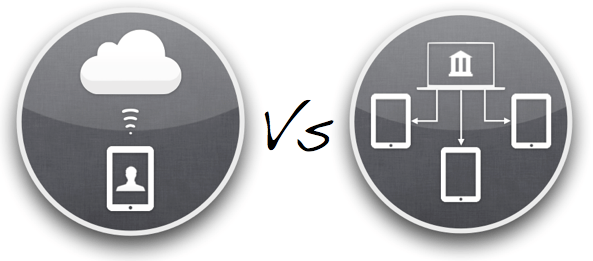
The management of the iPads then boils down to the question of Apple IDs.  Will we have one Apple ID that is shared across all the iPads through a wired syncing solution via iTunes?  Or will each iPad have its own Apple ID unique for that device?  Apple talk about this distinction as the difference between  ‘Institutional Ownership Model’ and a ‘Personal Ownership Model’. In our school, all app licences will be owned by the school, as the devices will be shared within classes, so the issue is more of whether it’s a wired or wireless solution.  Will the iPads be tethered to an iTunes account, requiring regular syncing and backing up, or will they live free, backing up and syncing data with the iCloud?

Maybe I need a table at this point…

Aspect Tethered iCloud
Licences With no volume licensing in the UK, either multiple apps aren’t licensed or lots of time has to be spent ‘gifting’ apps to spoof email accounts. Each app is fully licensed for every device. Will require lots of iTunes gift vouchers for each Apple ID!
Setup Create one ‘golden’ iPad master, back it up and then restore to every other iPad. Simples! Requires creation of every Apple ID, manual installation of apps on each device. Faffy at the start.
Maintenance Termly/half-termly syncing of all iPads to iTunes account. As the iPads will be thinly spread around the school, this would involve buying USB hubs for each classroom to sync to the teacher’s Mac Mini, buying a MacBook Air to wander around the school syncing iPads, or gathering up all the iPads into one place. Could be tiresome! iOS updates can be done with a tap. App updates just involve entering a password.
Adding new (free) apps Download apps on master iTunes account and then syncing them to the iPads. Probably couldn’t happen very often. Get kids to find the apps on the app store and then download. Simples! Would involve a bit more tapping by a teacher on each iPad in Foundation Stage.
Backups Plugging into iTunes to backup. Backing up to iCloud for each iPad whenever it’s being charged.
Additional costs Buying expensive syncing stations. Time at initial setup. Can our bandwidth cope?

At the moment I’m erring towards the ‘iCloud’ solution, mainly because, once the device has been setup, it can lead a simpler life in the classroom without cables and iTunes and faff. But we’ll see!

iTunes App Licences

Just been having a (thrilling) read through the iTunes Terms & Conditions to clarify a few things about purchasing iPad apps for multiple iPads.  Do you need one Apple ID for each iPad?  Or can you use a sync & charge device to copy your purchased apps onto 16 other iPads?

Here are some suggestions I’ve had:

  • You can have up to 5 iPads attached to one Apple ID, so you’ll only need to buy apps for a fifth of your iPads.
  • Set up one master Apple ID, load it up with iTunes gift vouchers and then gift all the apps to Gmail accounts you have made for each of your iPads.  That way you’ll be licensed, but don’t have to set up an Apple ID for each iPad.

The only problem with these is that it doesn’t reflect the iTunes Terms & Conditions!

1. With serial users on one iPad, you must have one Apple ID per iPad

It’s a bit of a pain, and I wish that Apple would hurry up with their Volume Purchase Program to make this easier.  But even with that, if you buy 45 copies of ‘Pages’, you still get 45 app codes that need to be redeemed on the 45 Apple IDs on your 45 iPads.  The process might be easier but it still assumes one Apple ID per iPad for serial users.

2. You can’t use an iTunes gift voucher balance to gift apps

In order to gift apps to a multitude of iPad email addresses, you’d need to to set up the school credit card on one of the Apple IDs (with a hefty credit limit… 45x£50=£2250).  Or just buy gift vouchers for each iPad.

Now, all of this is me talking from no experience whatsoever! I’d love to hear what other people are doing out there when it comes to managing multiple iPads.

